


Table of Contents
- View a list of your apprentices and their total hours logged
- View details of recorded work-based training hours for an apprentice
- Submit work-based training hours for your apprentices
- Delete previously recorded work-based training hours
- Submit a bulk upload of work-based training hours for multiple apprentices
View a list of your apprentices and their total hours logged
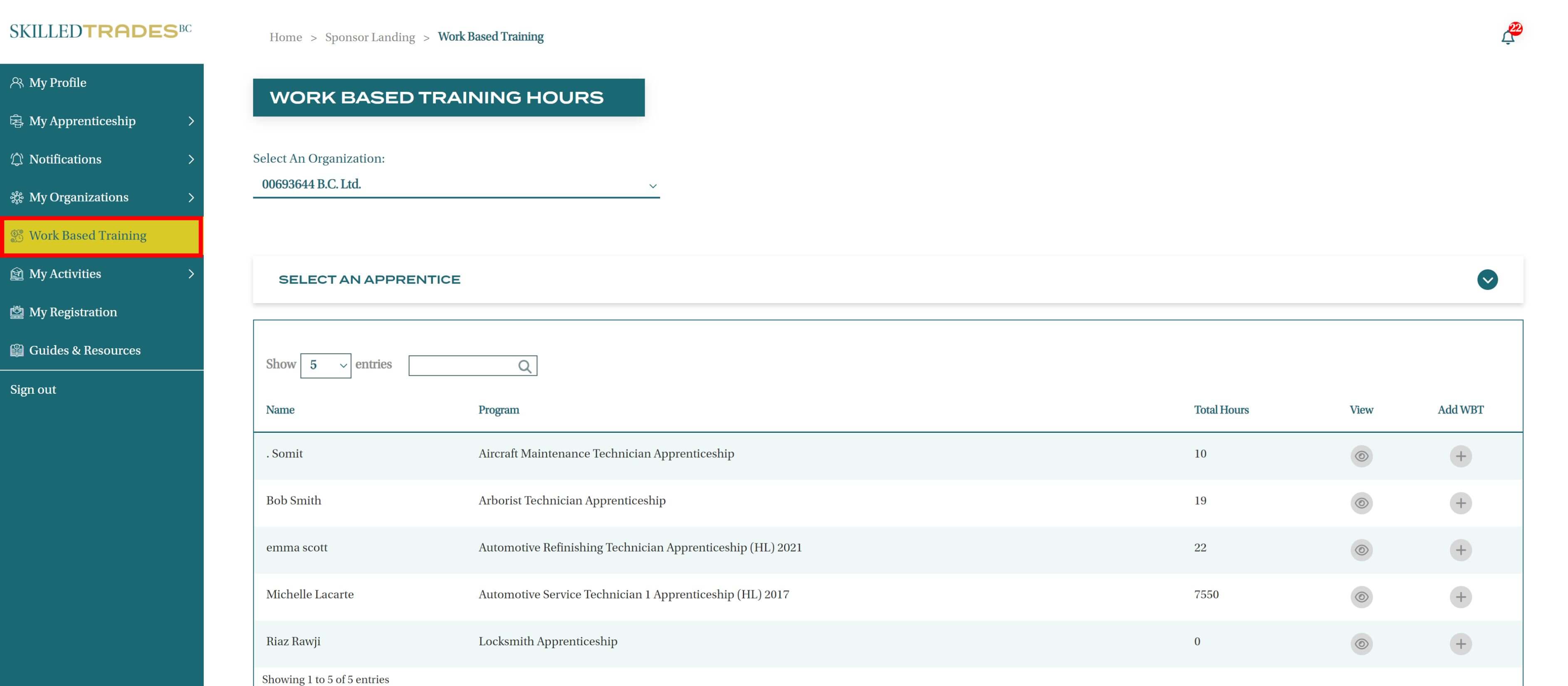
- After logging in, click on“Work-Based Training Hours” from the left navigation.
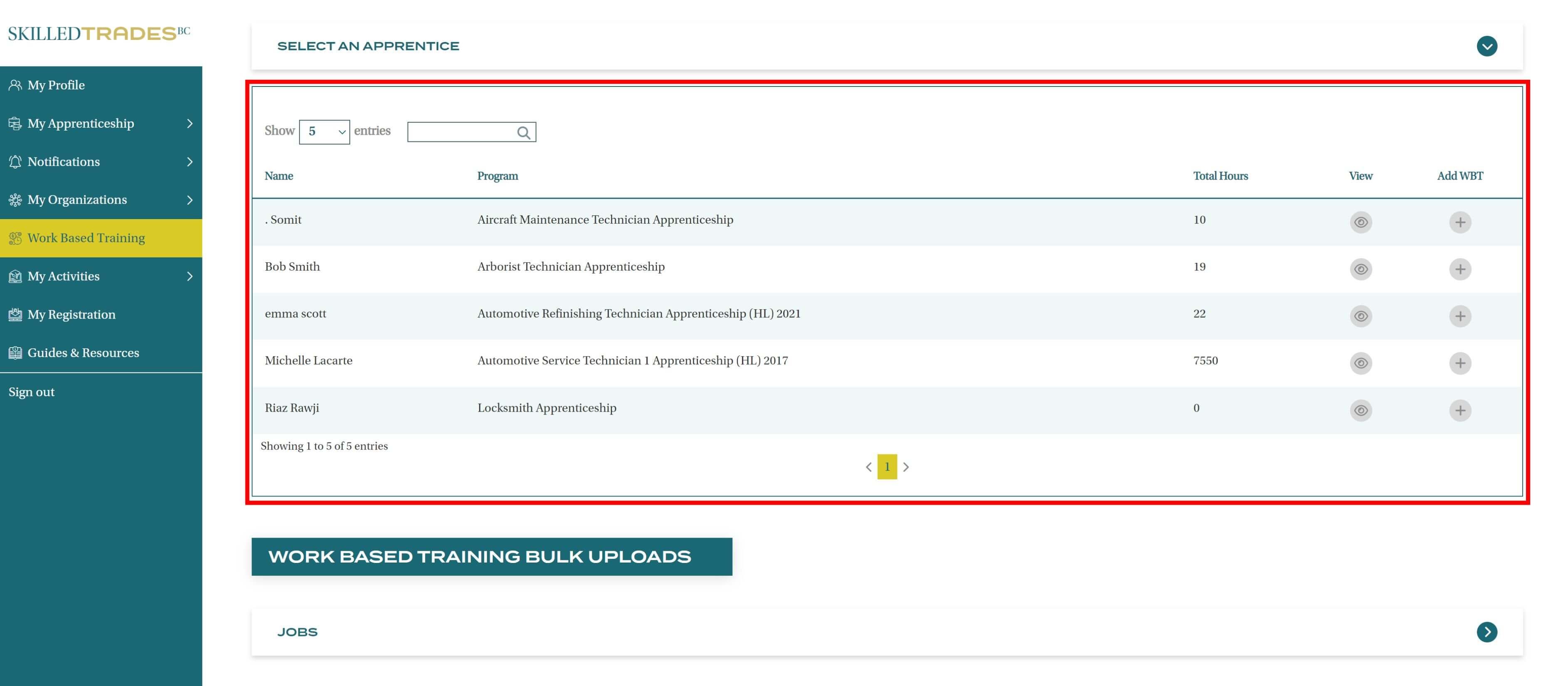
- Expand the “Select an Apprentice” to view a list of apprentices in your organization along with their program and total hours logged.
View the details of recorded work-based training hours for an apprentice
- Navigate to the “Work-Based Training Hours” in the left navigation menu, then expand the “Select an Apprentice” section.
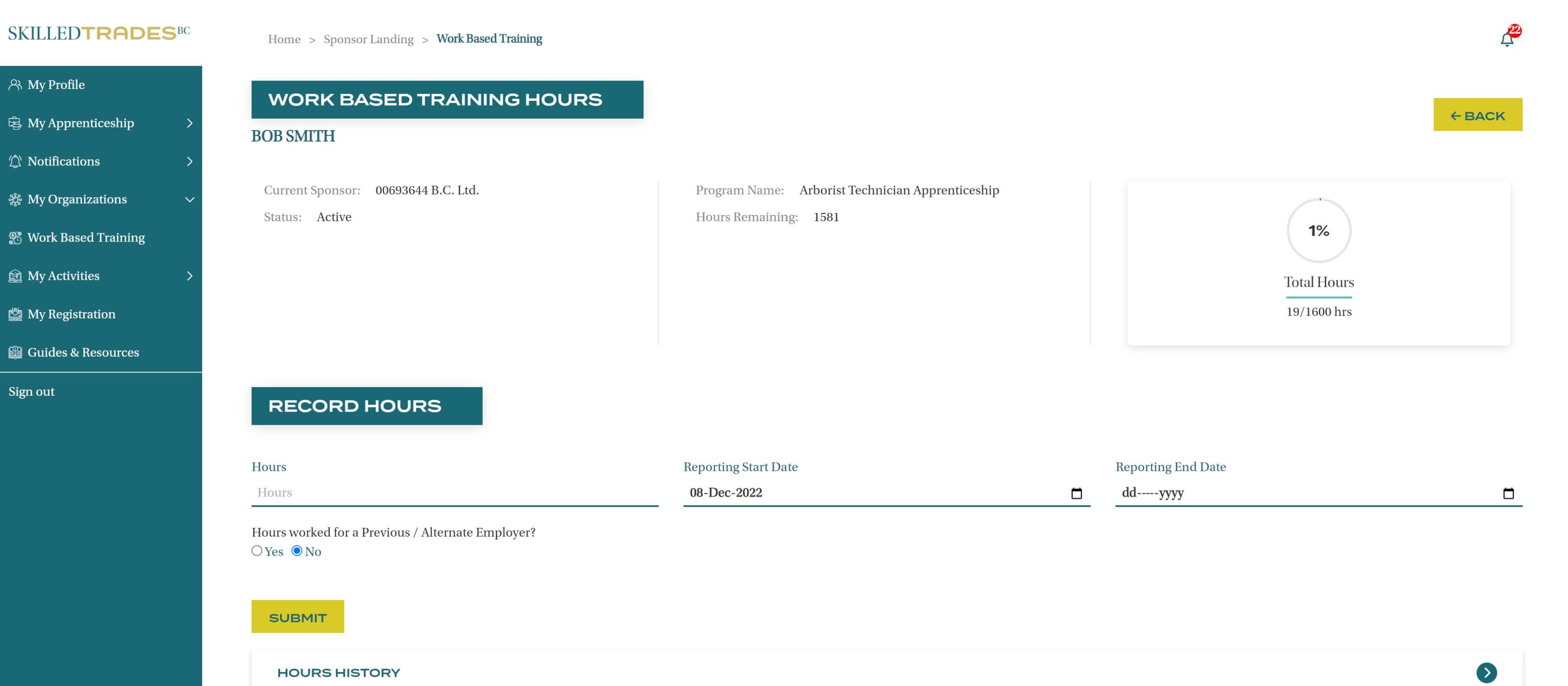
- Click the icon in the “View” column for that apprentice. This will take you to the page for the selected apprentice.
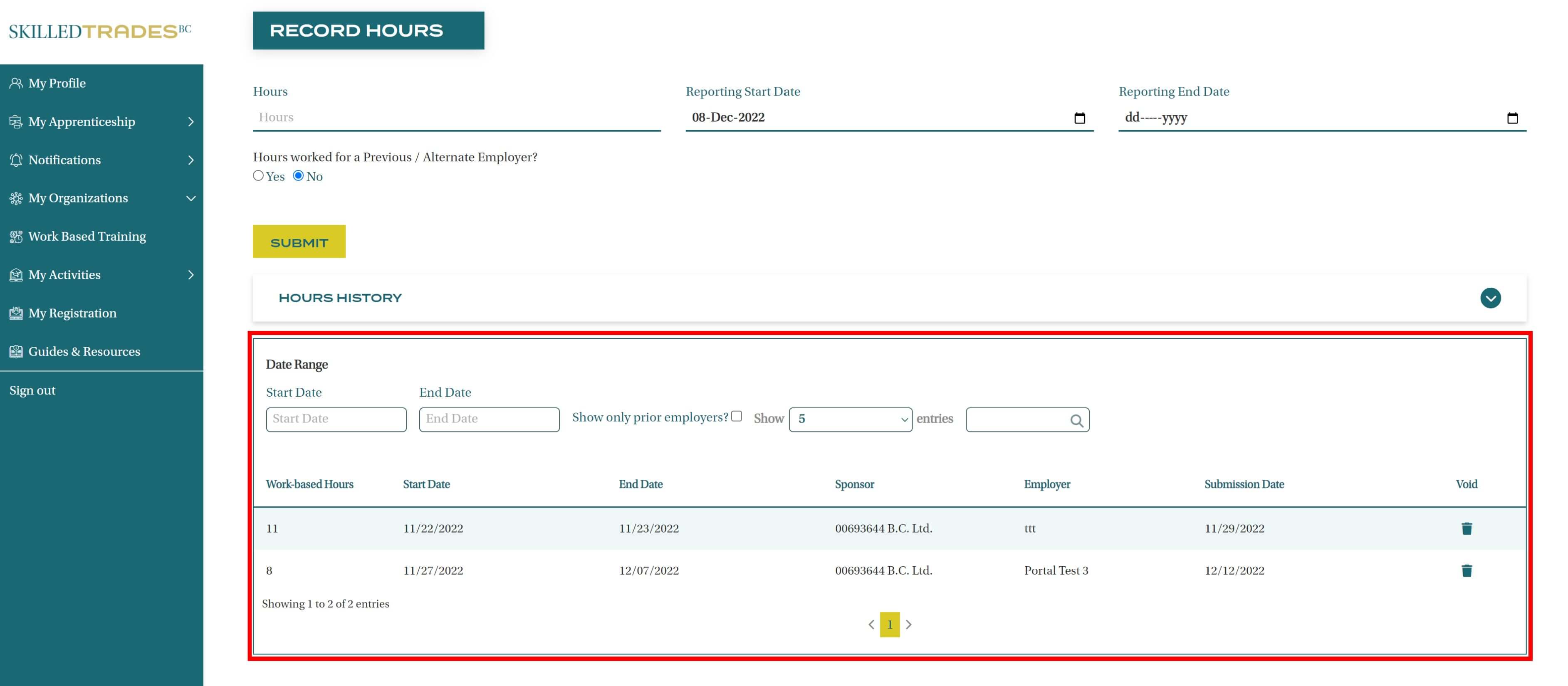
- Expand the “Hours History” section and you will see a table with details of the previously submitted hours.
Submit work-based training hours for the selected apprentice
Option 1:
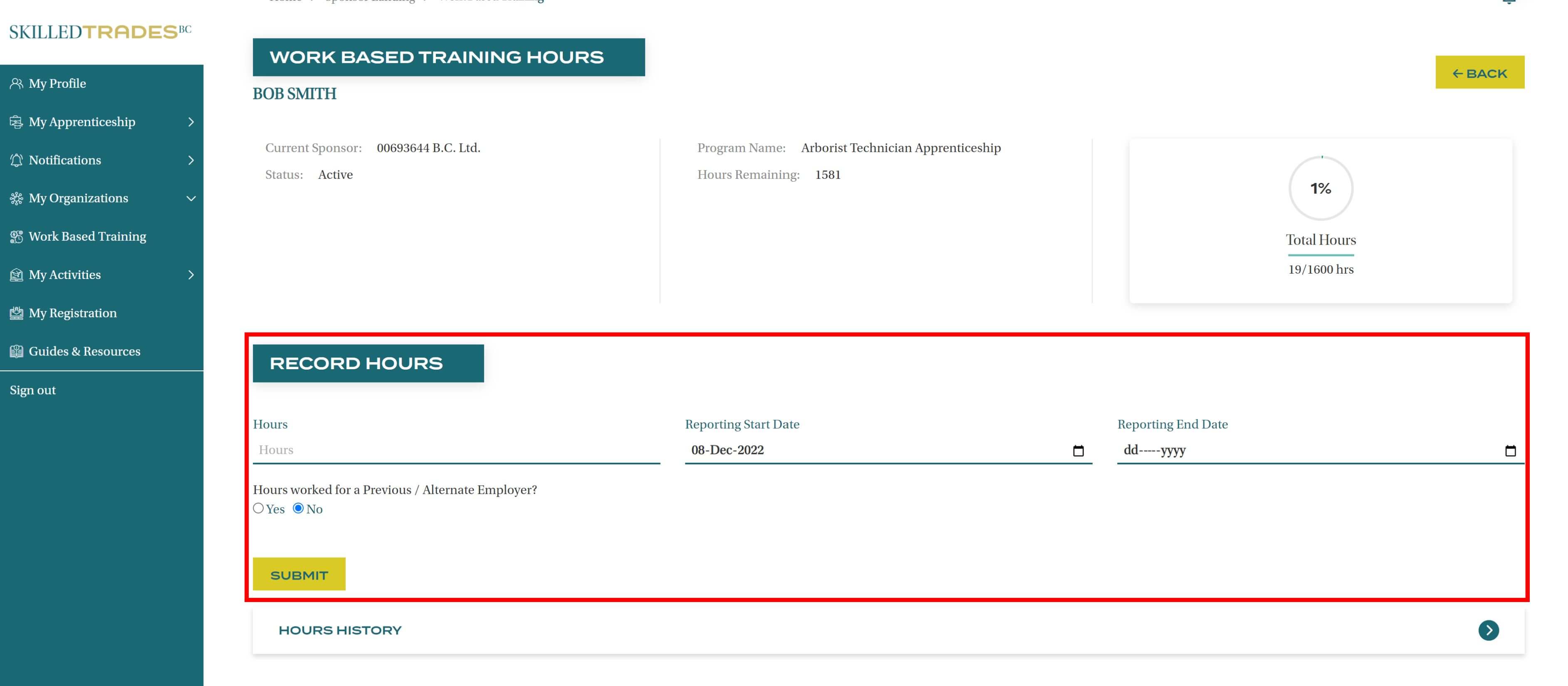
- Navigate to the “Work-Based Training Hours” in the left navigation menu, then select the apprentice you want to view.
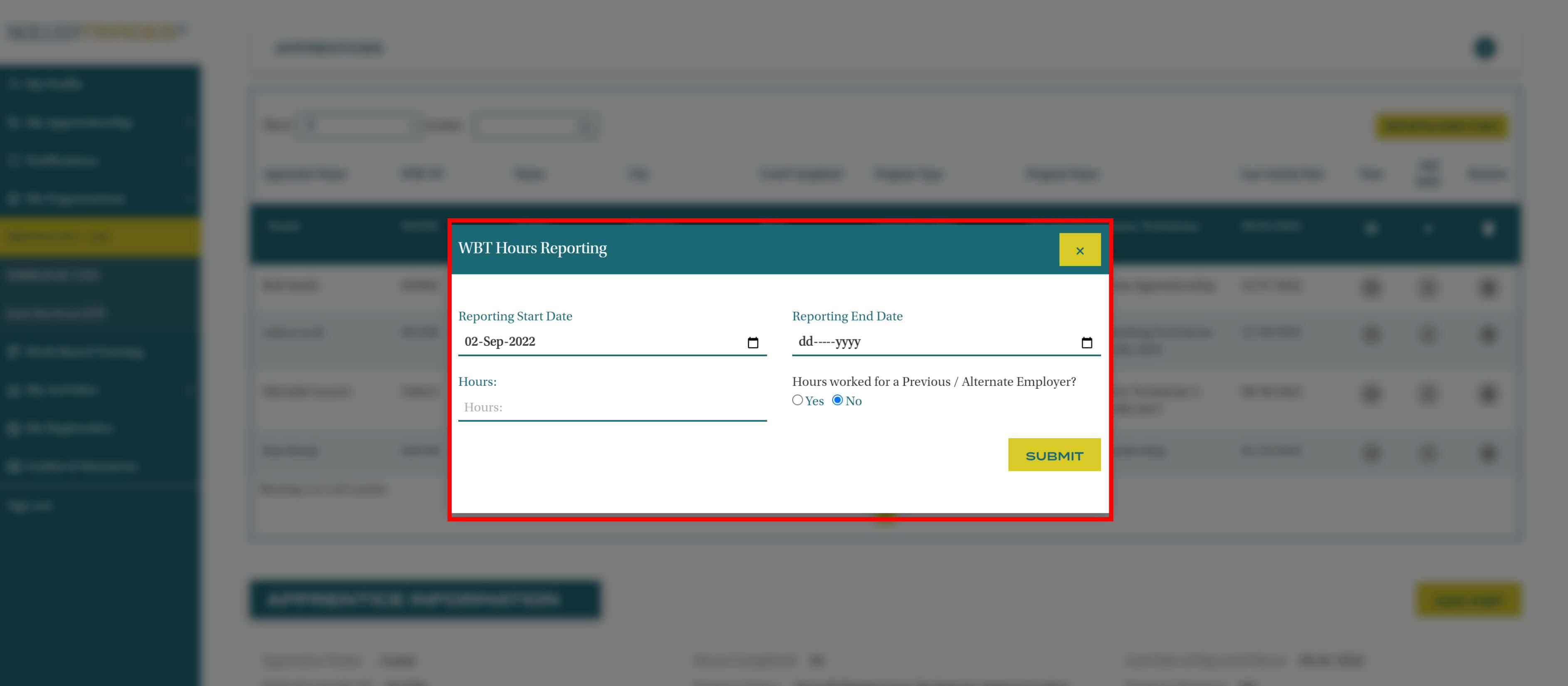
- Go to the “Record Hours” section and fill out all fields. Ensure you fill out the fields with the number of hours the apprentice worked and specify the work period of start and end dates.
Option 2:
- Navigate to “My Organizations” in the left navigation menu and select the organization where your apprentice is employed.
- Expand the “Apprentices” section to view a list of apprentices in your organization along with their program information.
- Click the icon under the “Add WBT” column for the selected apprentice.
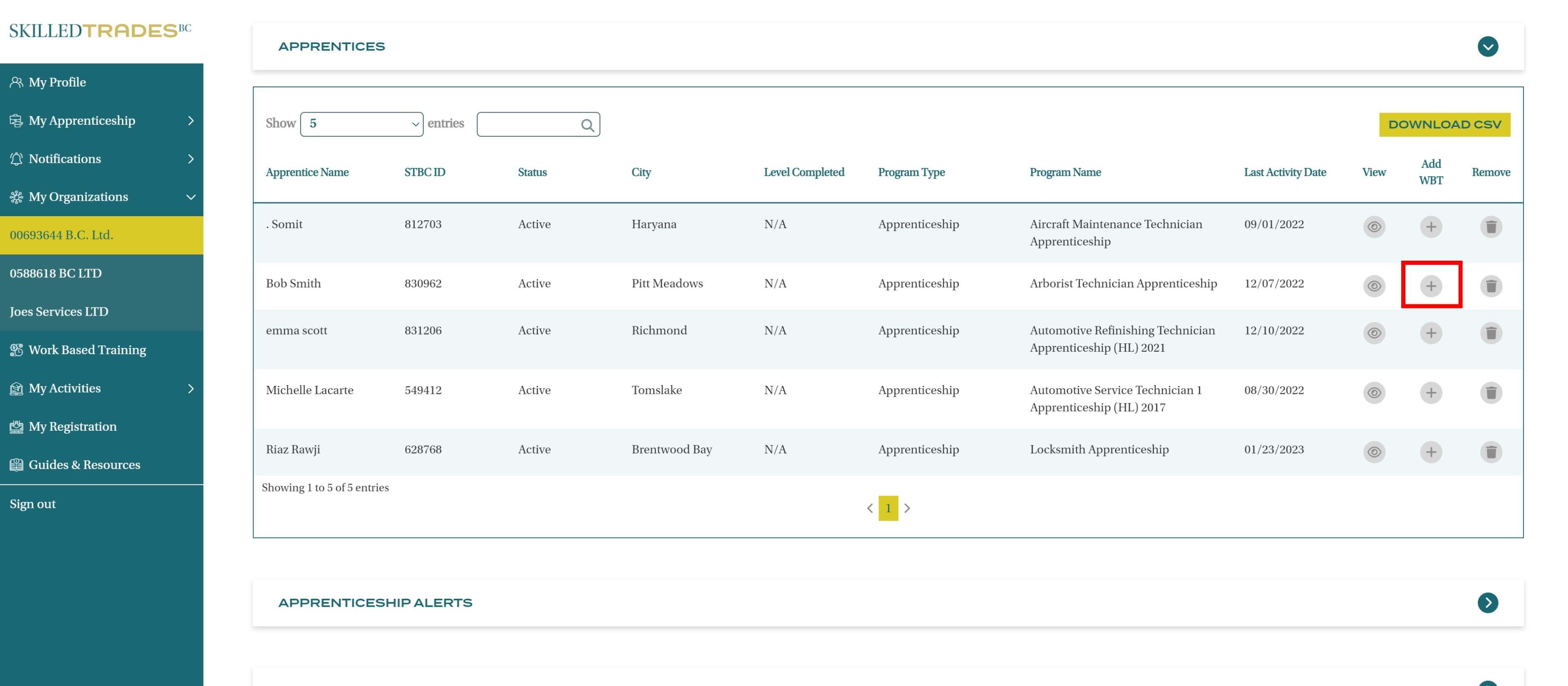
- You will see a pop-up appear. Fill out the fields with the number of hours the apprentice worked and specify the work period start and end dates.
- If you are reporting hours for your apprentice where they previously worked for another employer, select “Yes”. Add the name of the previous/alternate employer. If not, select “No” to continue.
- Click the “Submit” button to complete the process.
| Troubleshooting Tips: |
|---|
|
High Hours Warning: Appear when training hours exceed expected average for period. Fix: Verify hours accuracy, check date range. |
|
Overlapping Dates Errors: Appear when Report Dates overlap with previous submissions. Fix: Review previous reports, adjust dates. |
| Always review your data before submitting to ensure accuracy |
Delete the previously submitted work-based training hours
- Navigate to “Work-Based Training Hours” in the left navigation menu, then select the apprentice you want to view.
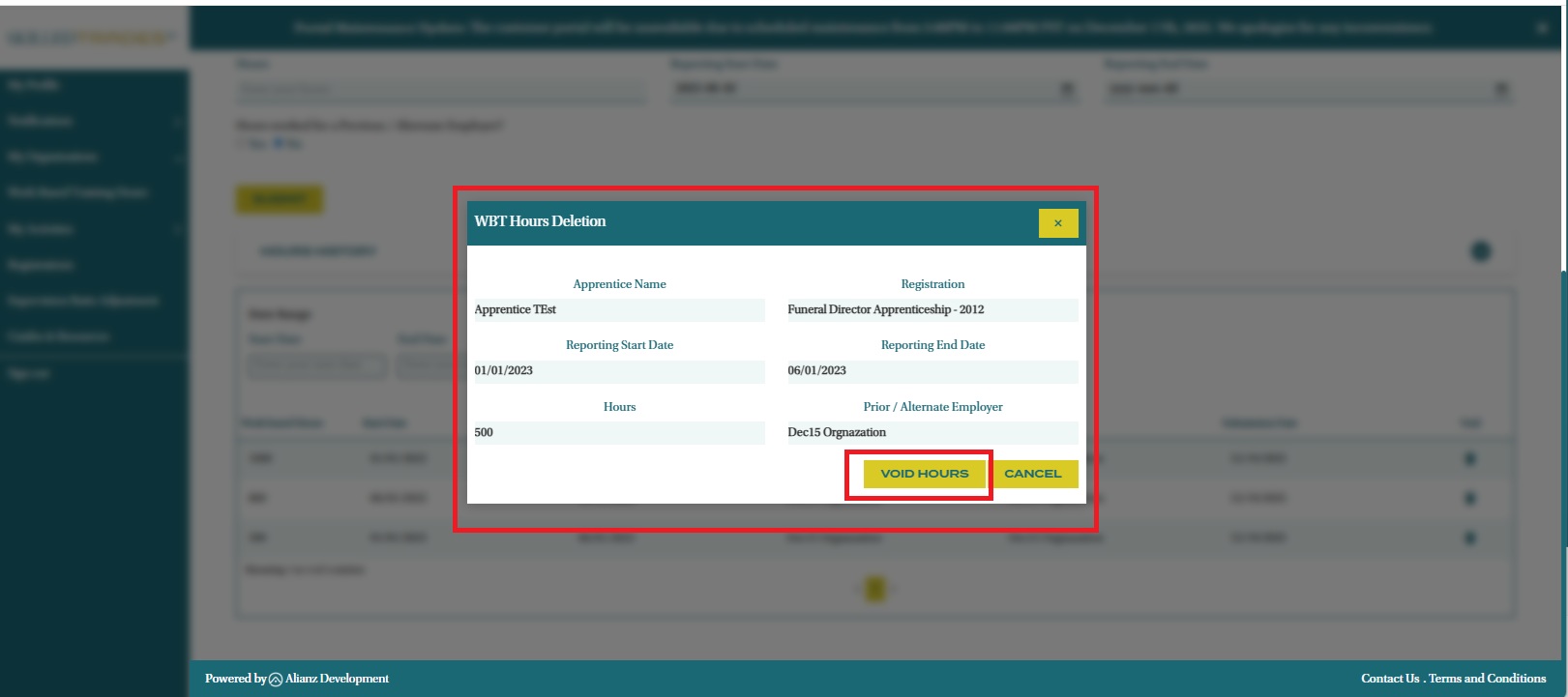
- Expand the “Hours History” section and click on the icon under the “Void” column.
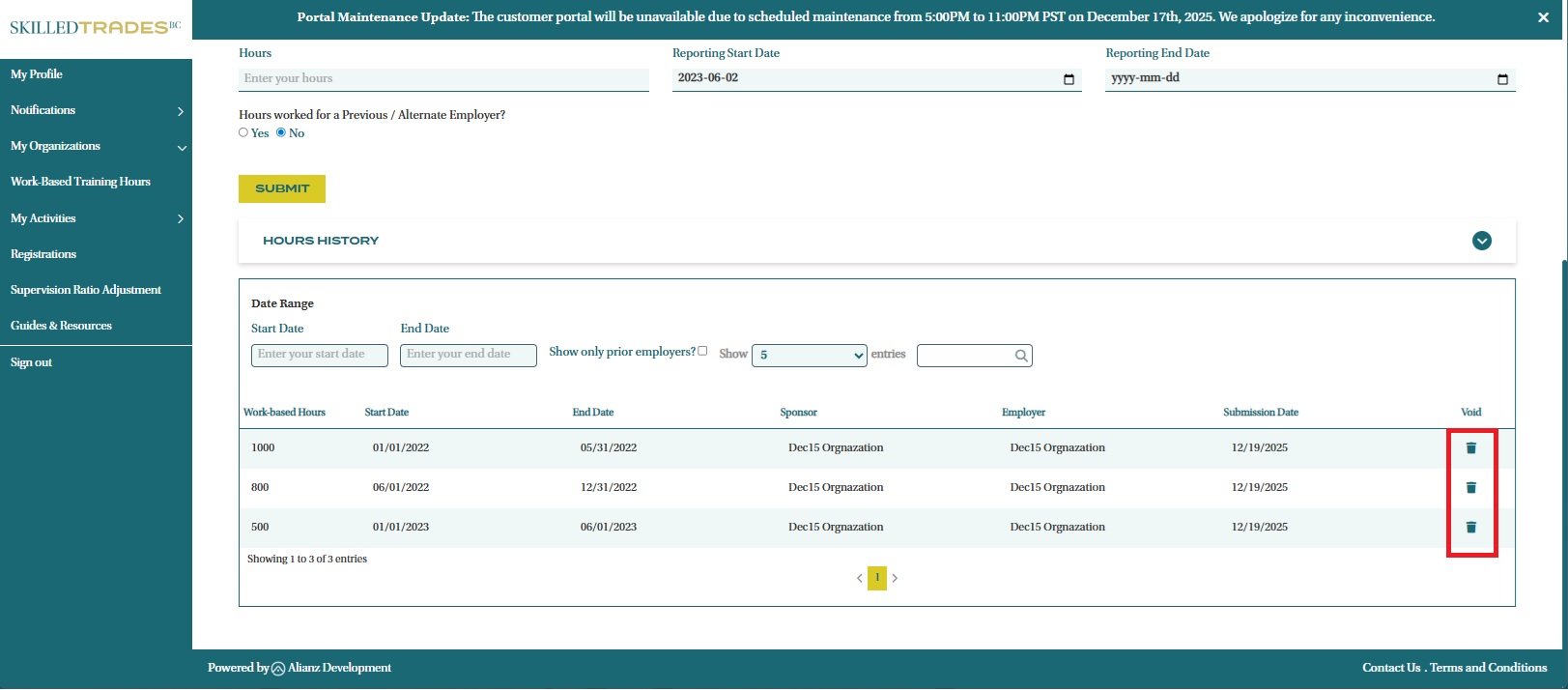
- You will see a pop-up appear. After reviewing the information, click “Void Hours” to delete the work-based training hours submission.
Submit work-based training hours for multiple apprentices through a Bulk Upload
Option 1: Uploading an Excel .CSV file
Navigate to: Work-based Training Hours > Work-based Training Bulk Upload > Jobs > New Upload
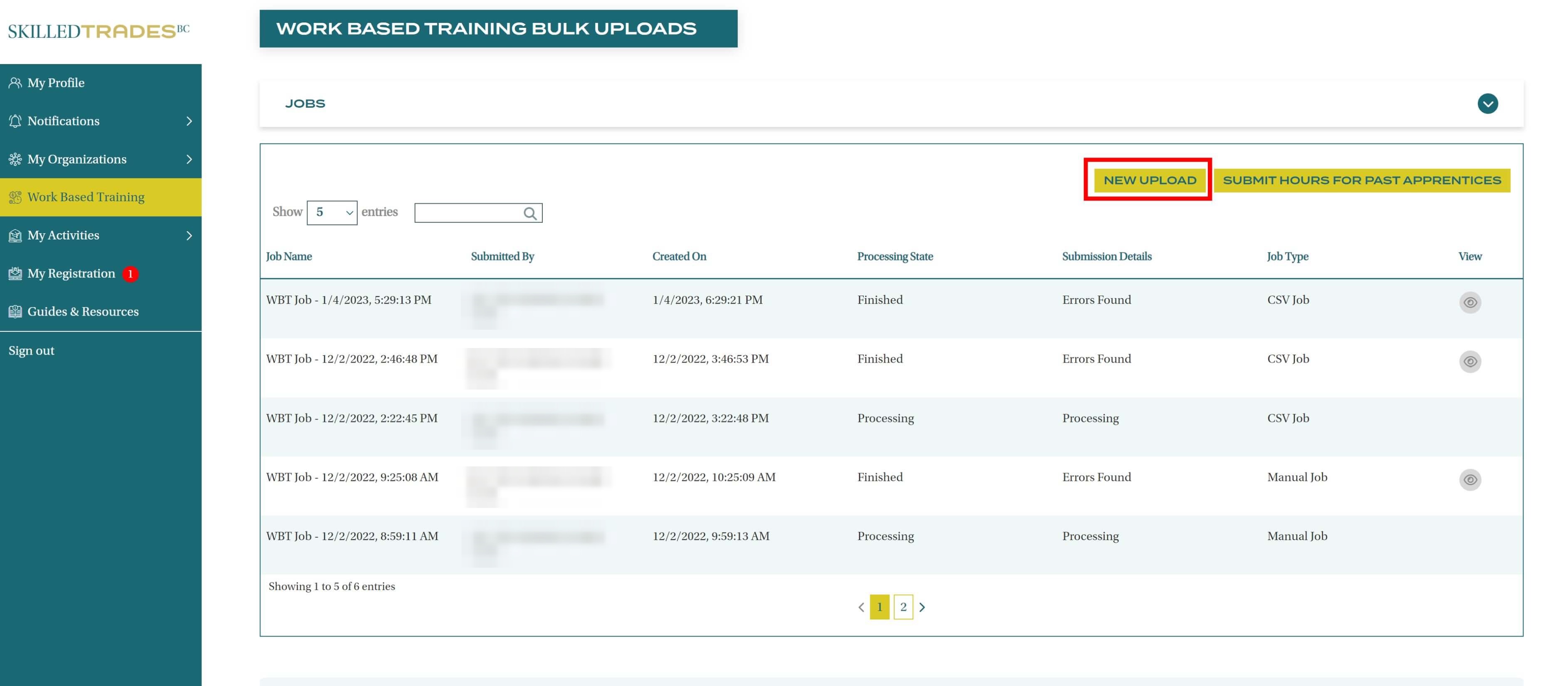
- Navigate to “Work-Based Training Hours” in the left navigation, then click on the “Jobs” under “Work-Based Training Bulk Uploads” section. Click the “New Upload” button to start your upload.
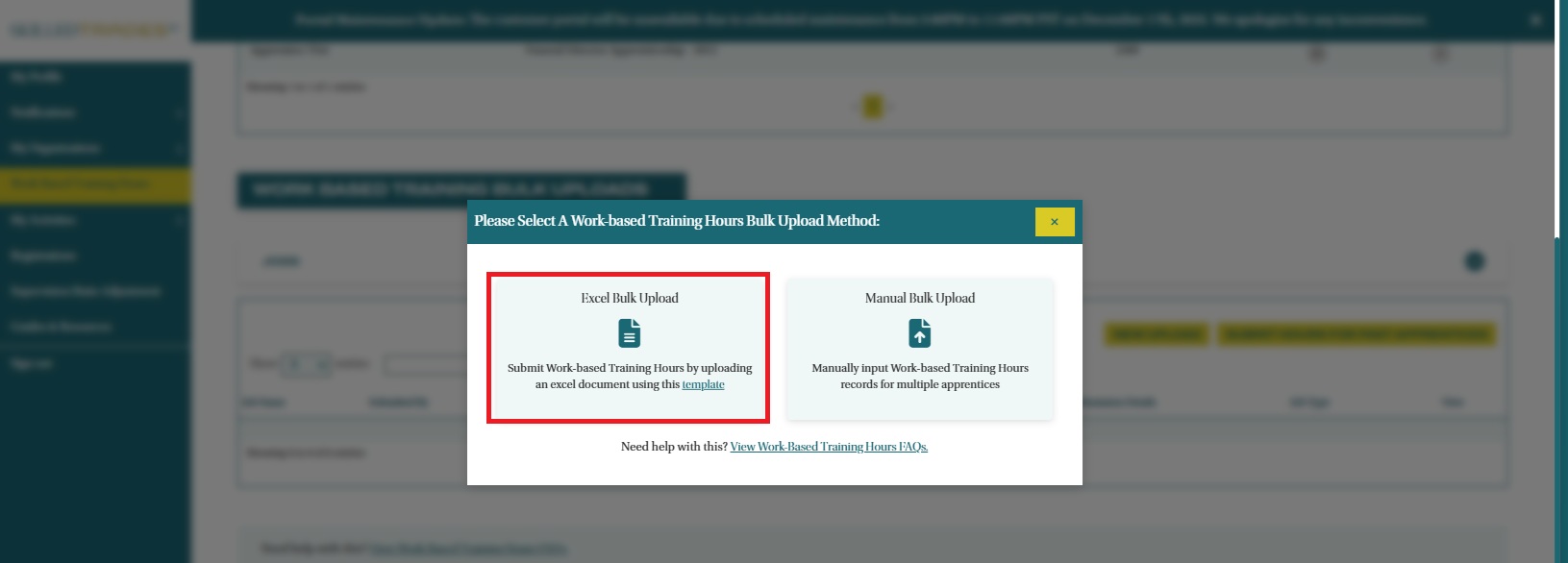
- In the pop-up box, click the link in the “Excel Bulk Upload” option to download the Excel template in CSV format. Add work-based training data to this template based on the format provided.
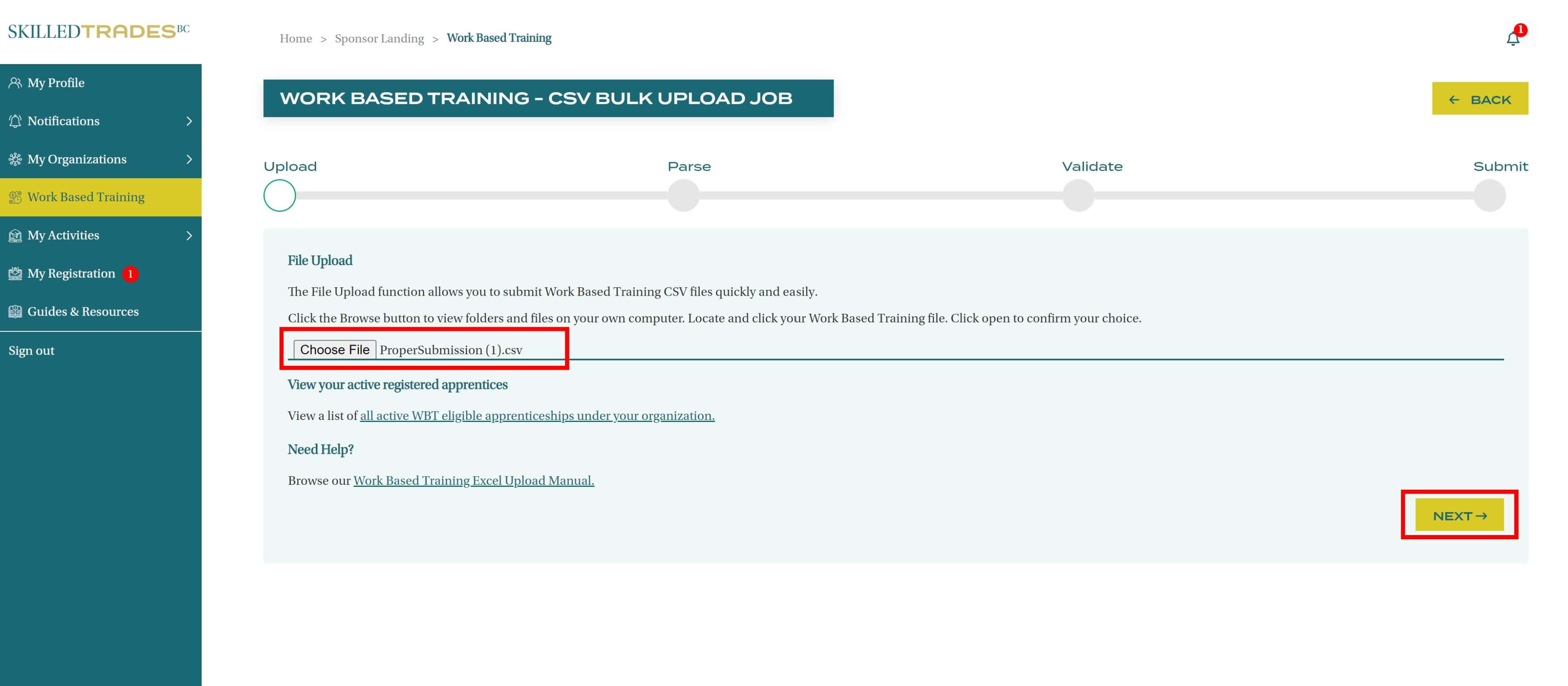
- After clicking the “Excel Bulk Upload” option, you will see the Work-based training – CSV Bulk Upload Job page. Click the “Choose File” button to upload the excel file with work-based training data. Once the file is uploaded, click the “Next” button.
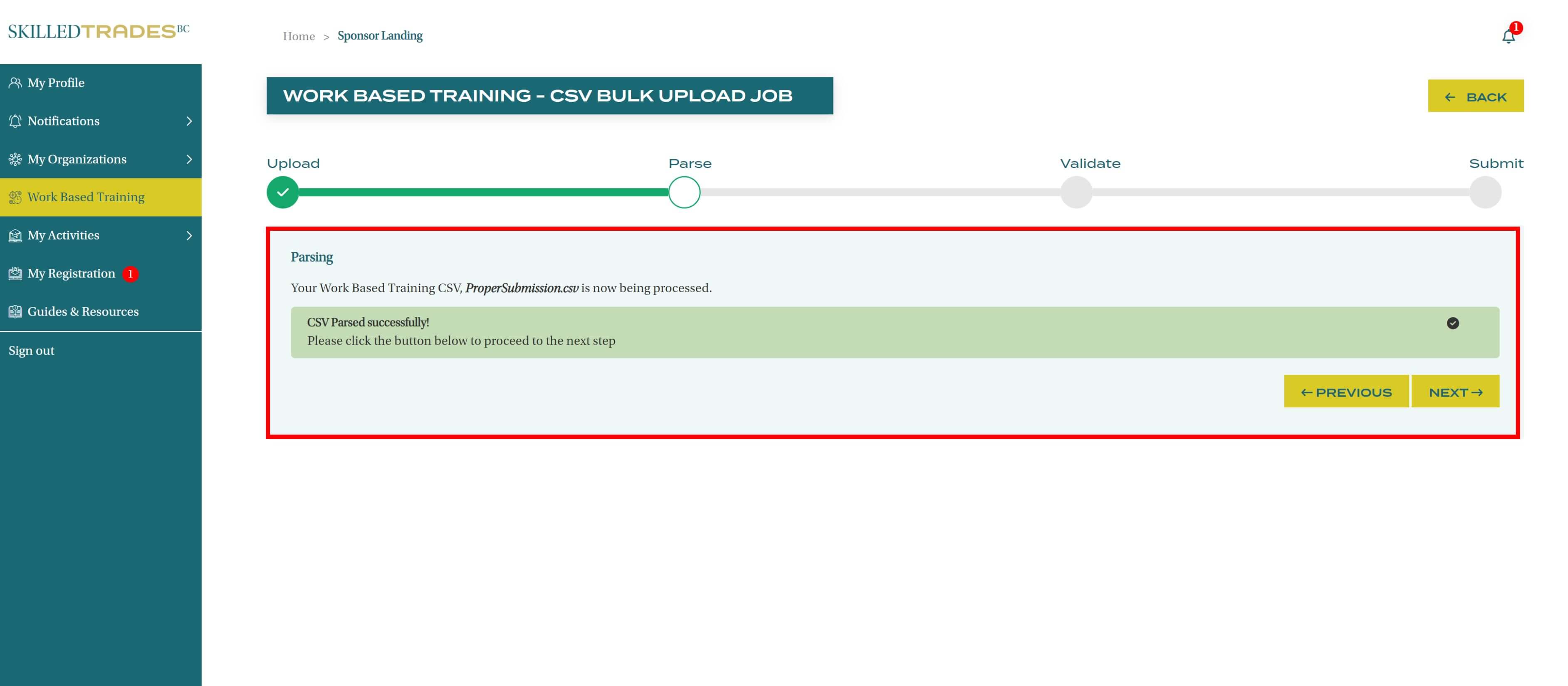
- Your file will be checked to ensure it follows the correct format. Click “Next” to continue.
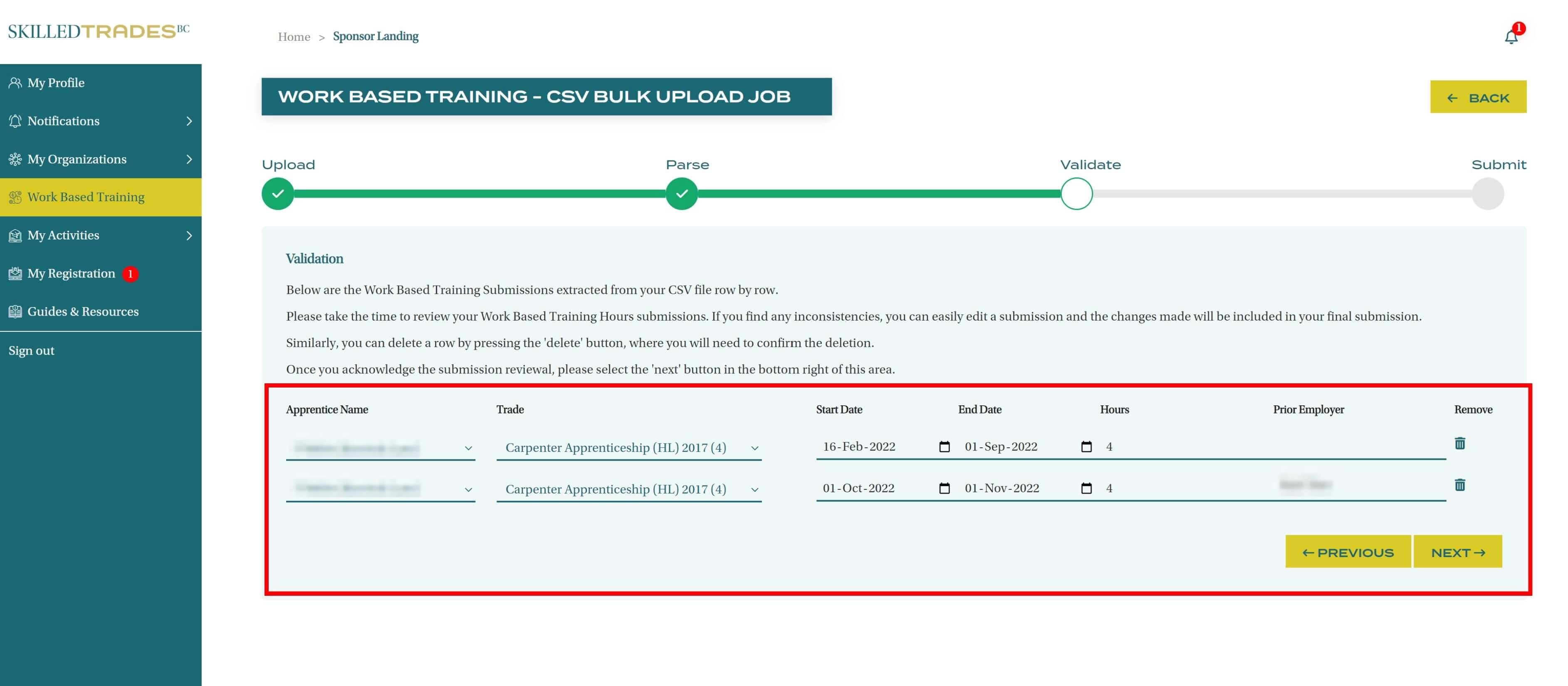
- Review and validate the records. Each record can be edited or deleted as needed. Once you have confirmed the records are correct, click “Next” to continue.
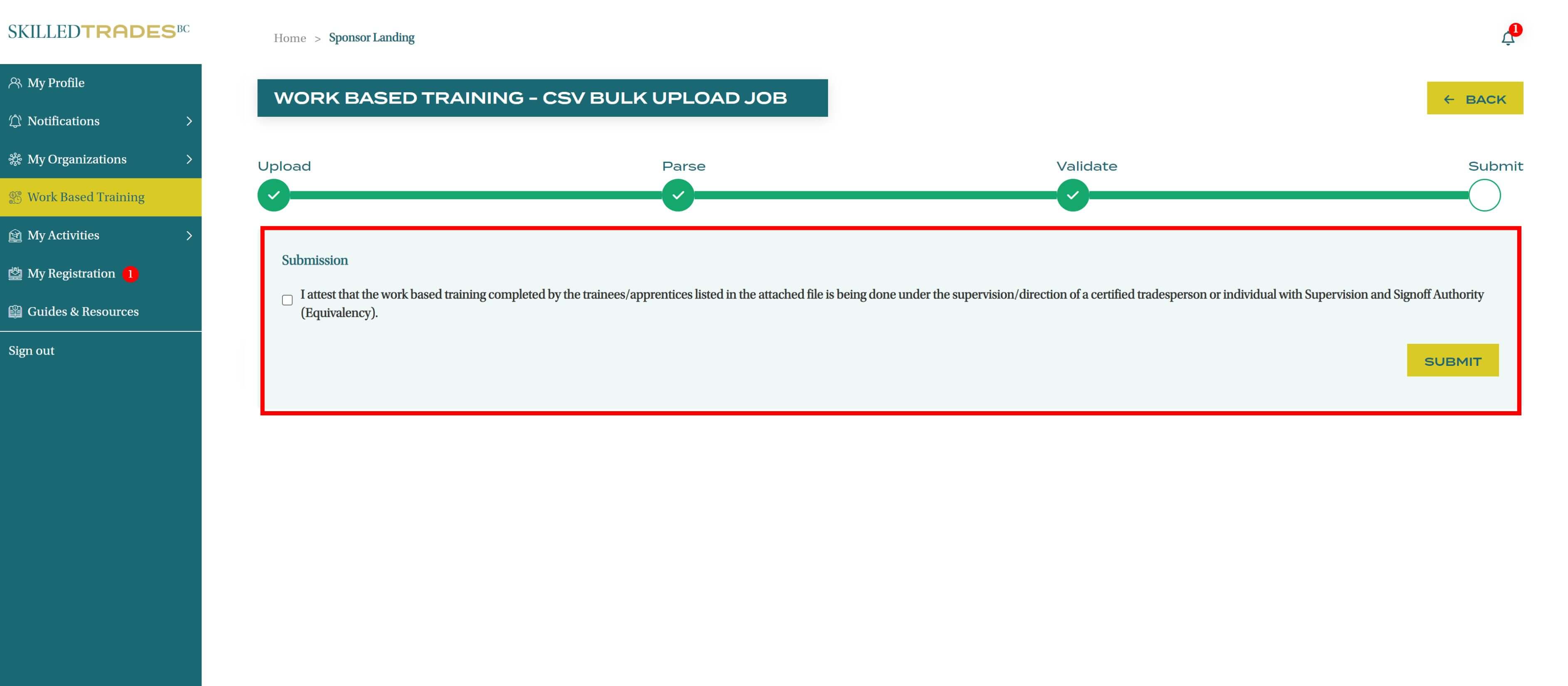
- Complete the attestation by checking the box and clicking the “Submit” button.
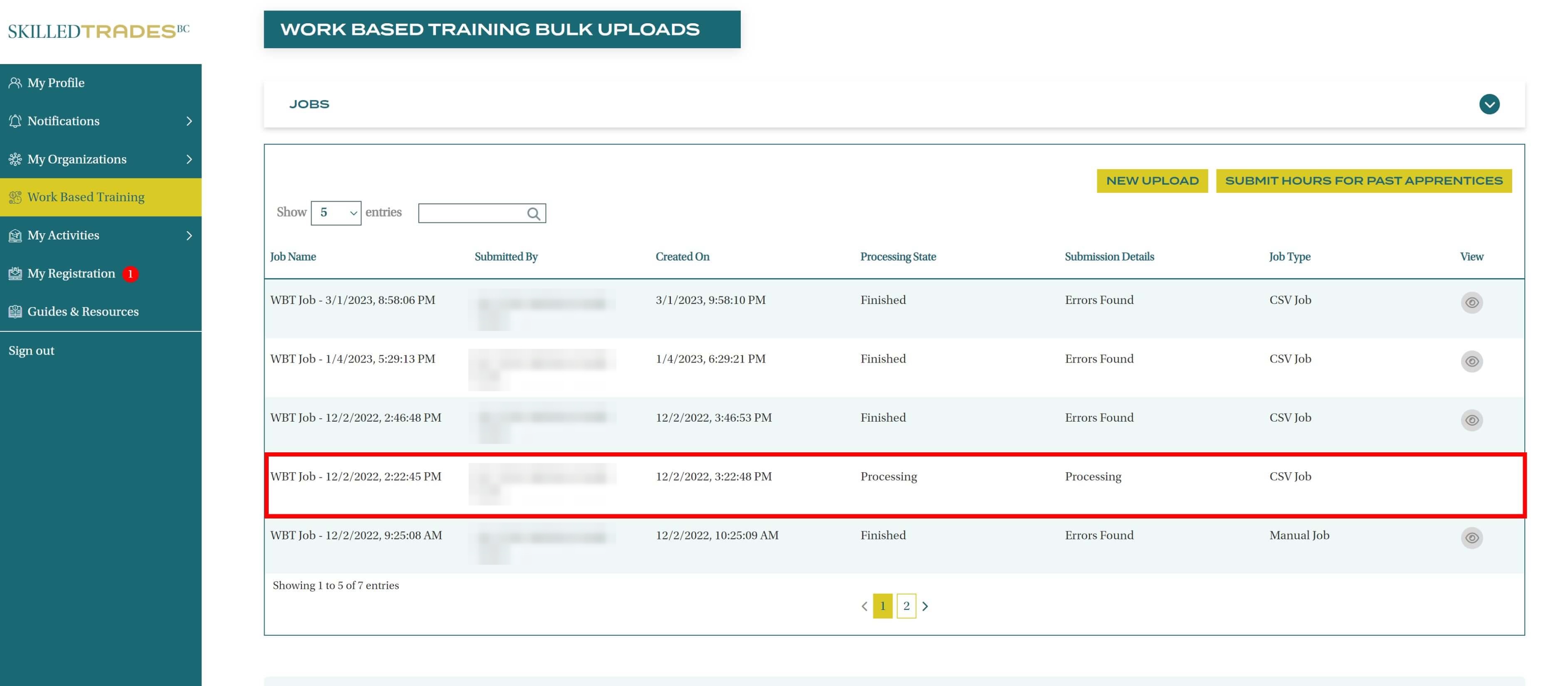
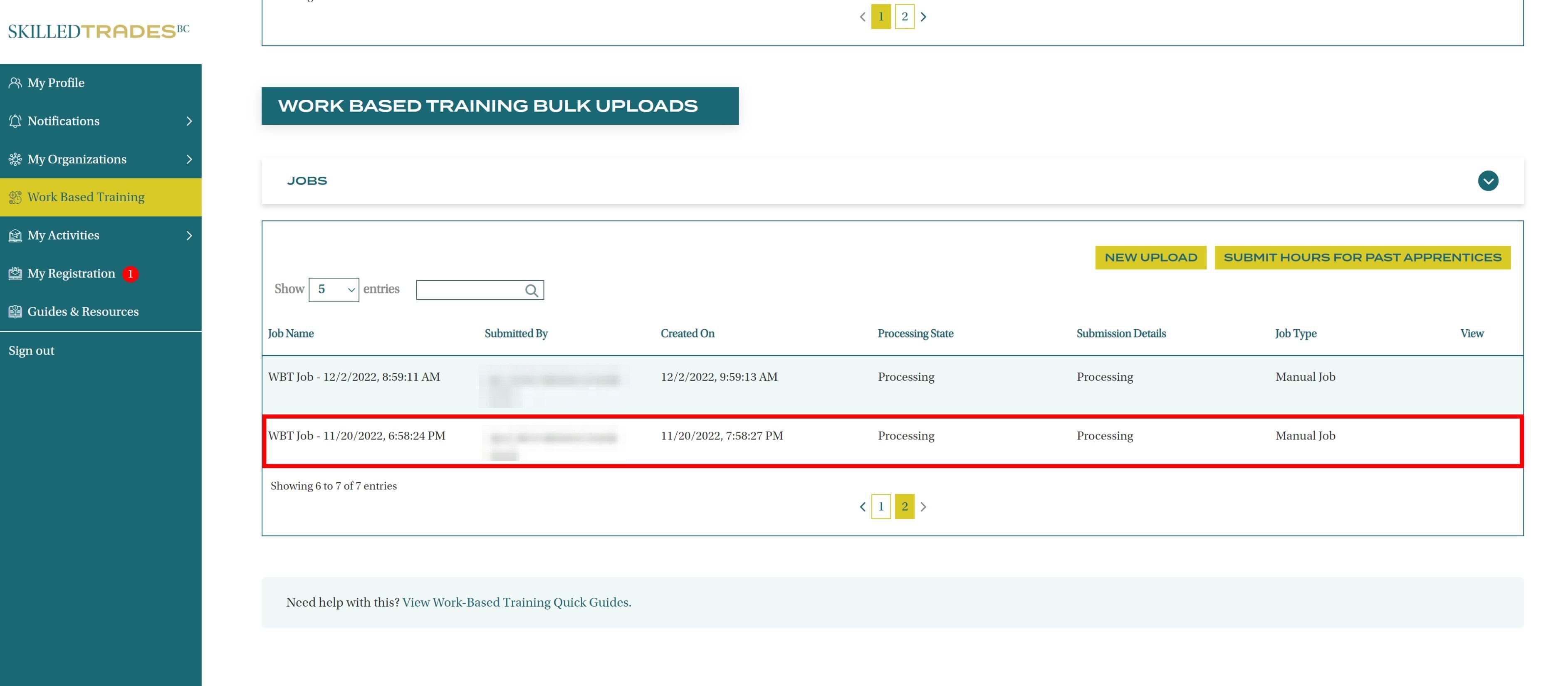
- The bulk upload of work-based training records has been successfully submitted and its status can now be viewed under the “Jobs” section.
Note: Your bulk upload may take up to several hours to complete. Upon completion, we will send you an email notification.
Option 2: Manually Entering the Information Through a Form
Navigate to: Work-based Training Hours > Work-based Bulk Upload > Jobs > New Upload
- Navigate to “Work-Based Training Hours” in the left navigation, then click on the “Jobs” under “Work-Based Training Bulk Uploads” section. Click the “New Upload” button to start your upload.
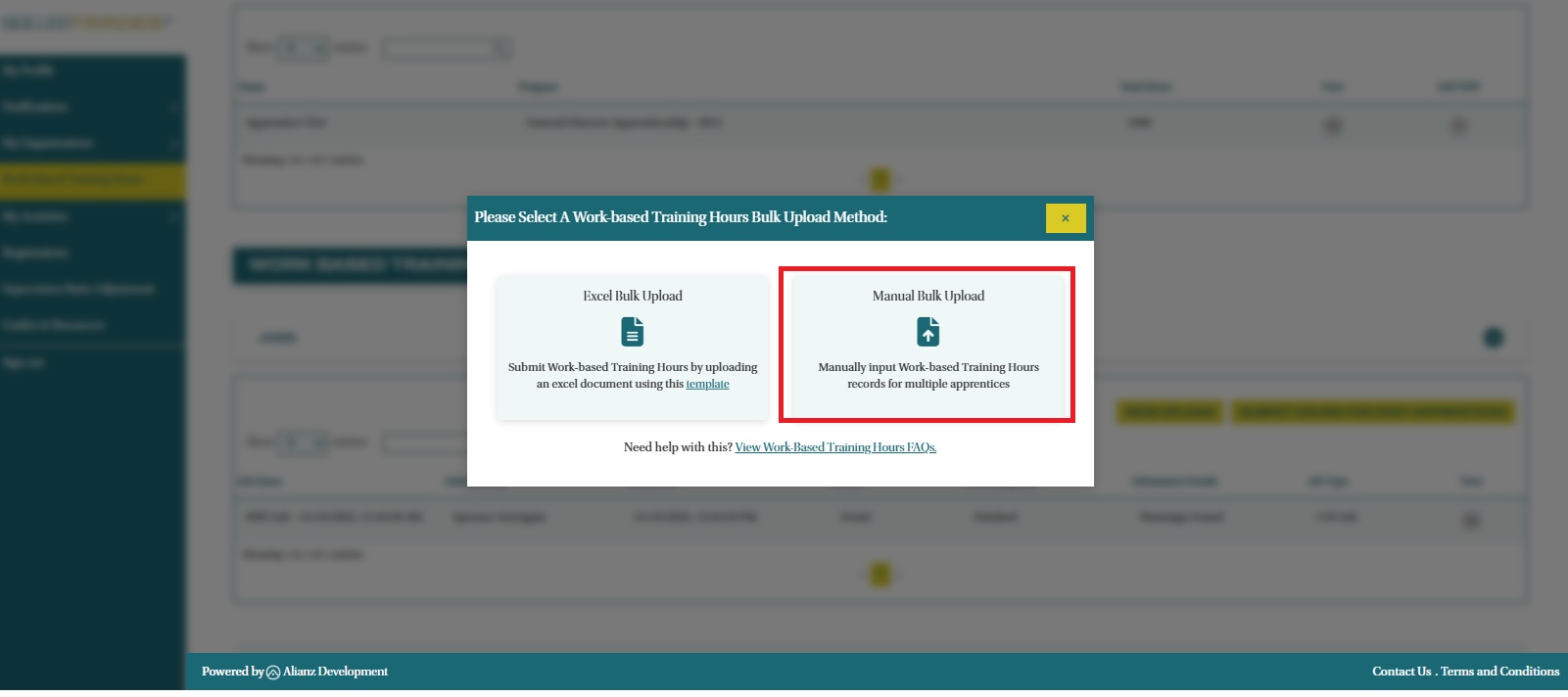
- In the pop-up box, select the “Manual Bulk Upload” option.
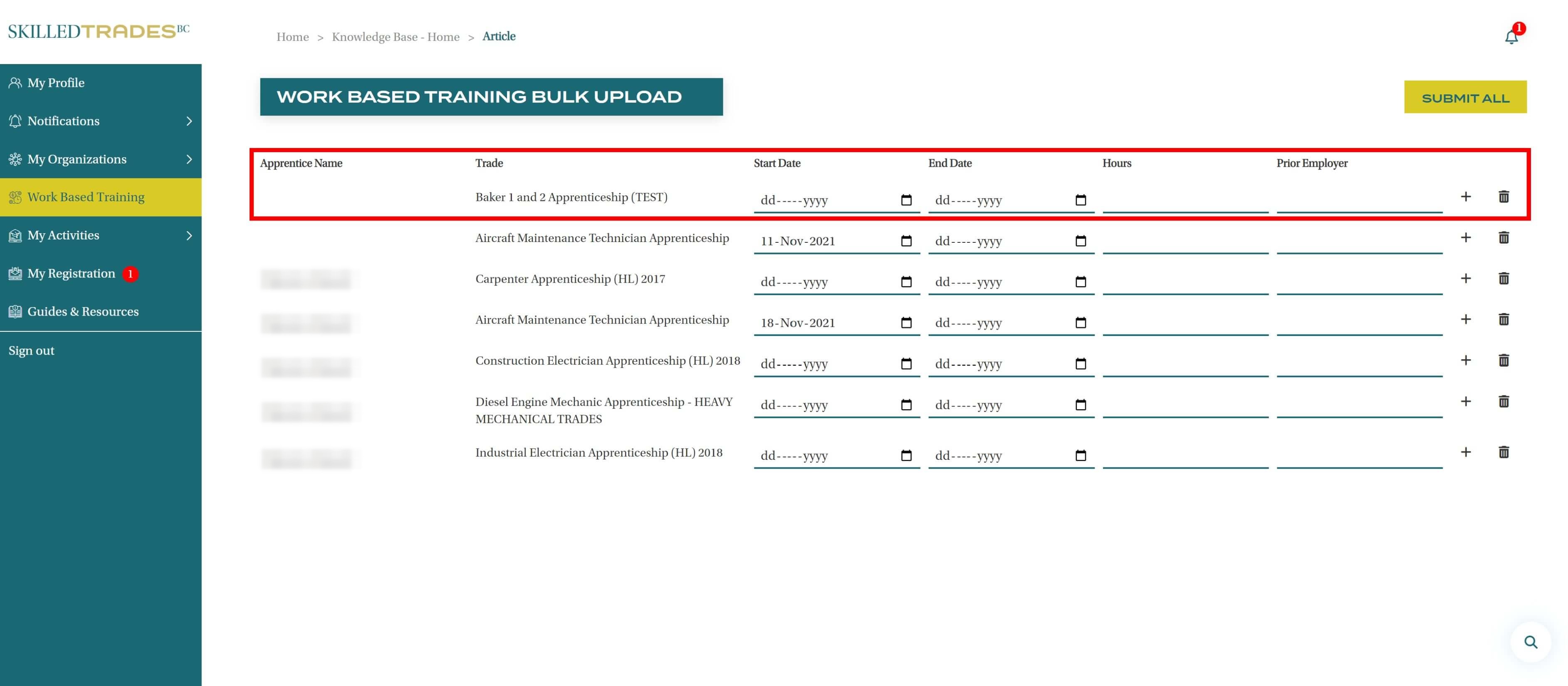
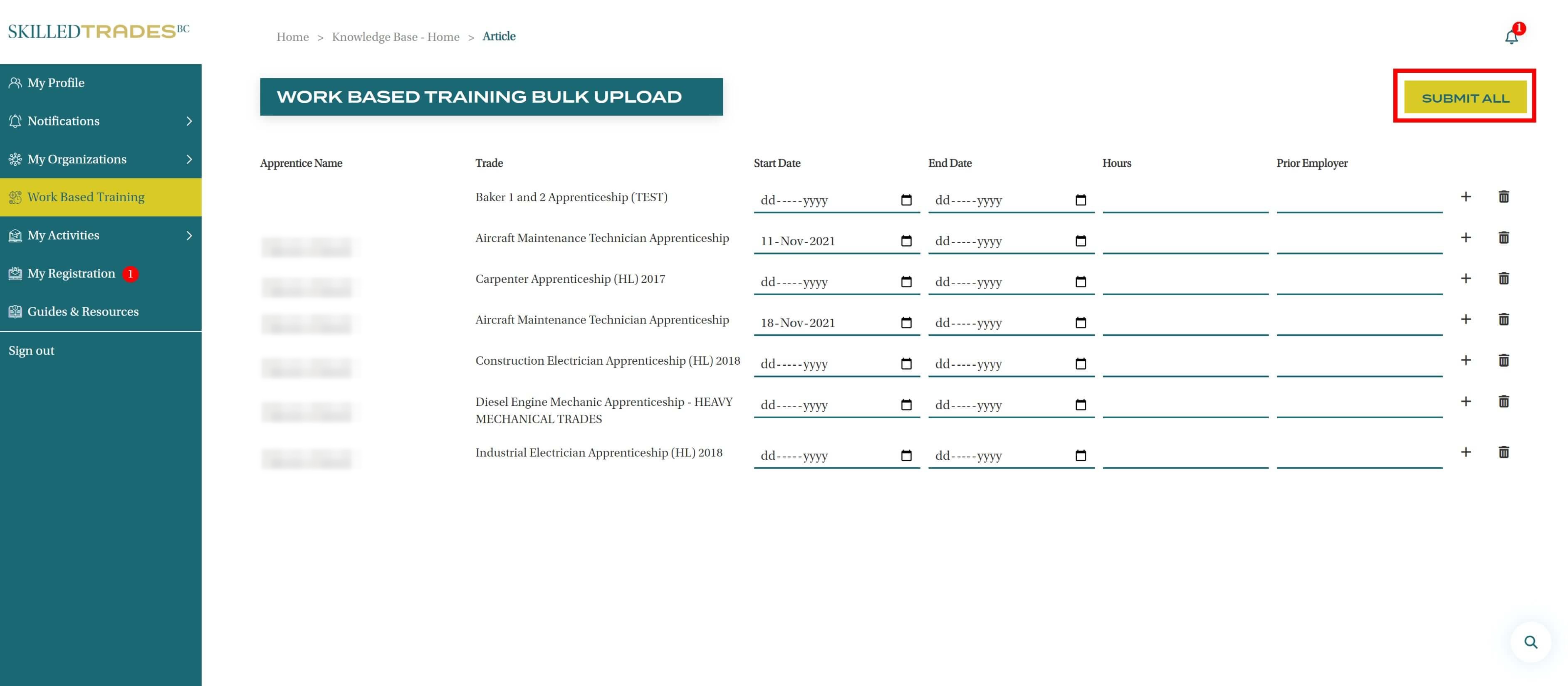
- Record the work-based training hours for each apprentice.
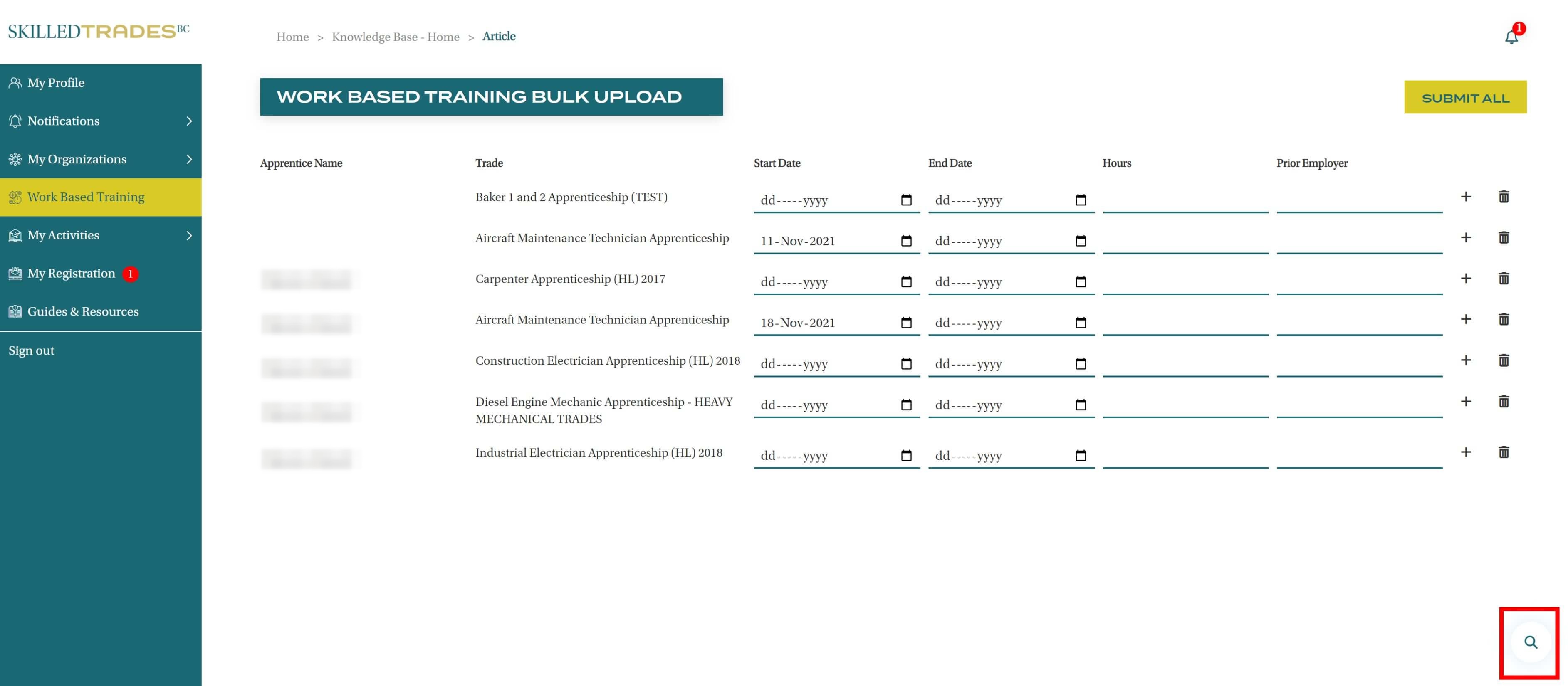
- View a list of all the apprentices and their trade names by clicking on the magnifier icon in the bottom right of the screen. This will present a list of all the eligible apprentices.
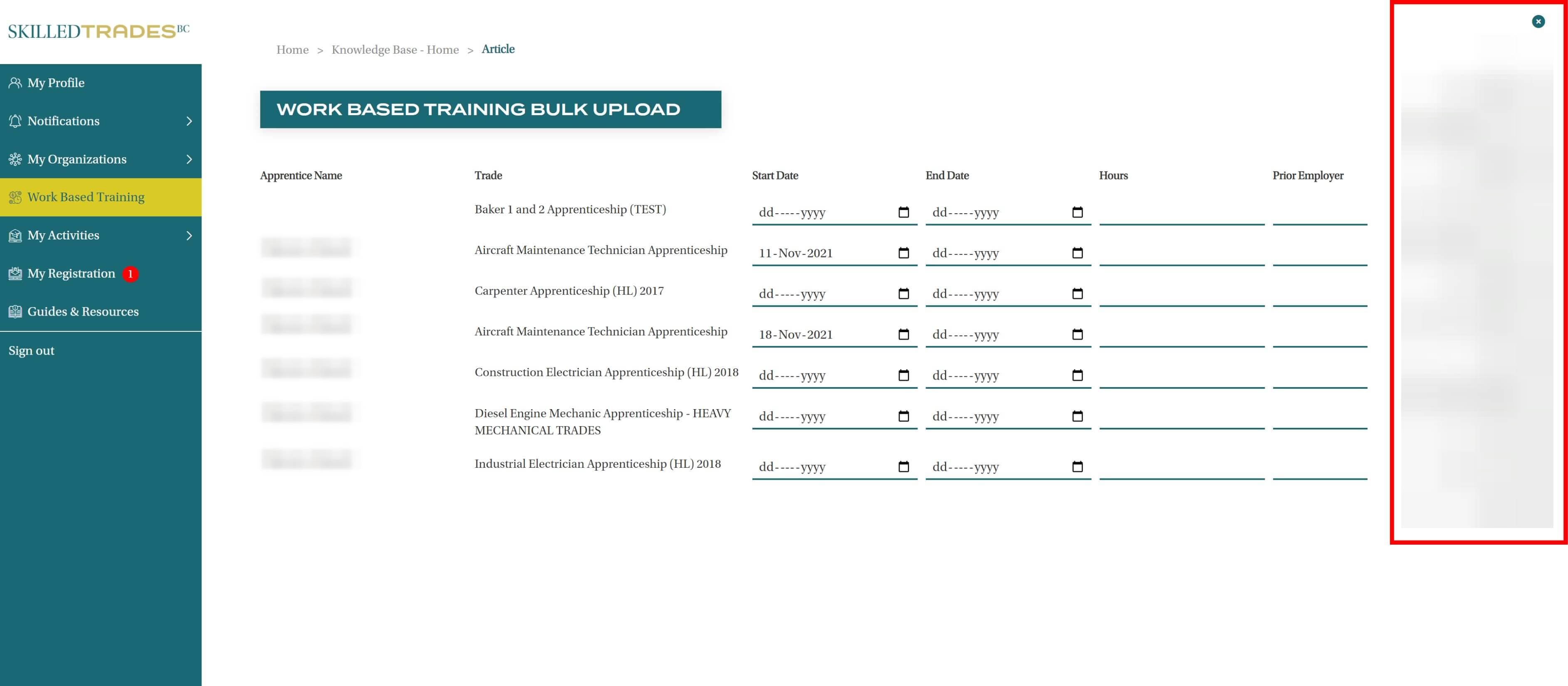
- Click on an apprentice’s name and trade program to add work-based training hours for them.
- Click the “Submit All” button after completing all required submission records.
- The bulk upload of work-based training records has been successfully submitted and its status can now be viewed under the “Jobs” section.
Note: Your bulk upload may take up to several hours to complete. Upon completion, we will send you an email notification.
Need help?
Contact us by:
- Submit inquiries through “My Sponsor Inquiries” section
- Email: customerservice@skilledtradesbc.ca
- Phone: 778 328 8700/ Toll Free in British Columbia: 1 866 660 6011
Last updated: December 2025